

Budgeting Guide: How to Submit a Departmental Correction Request in FAMISWeb
The following steps are how to submit a DCR.
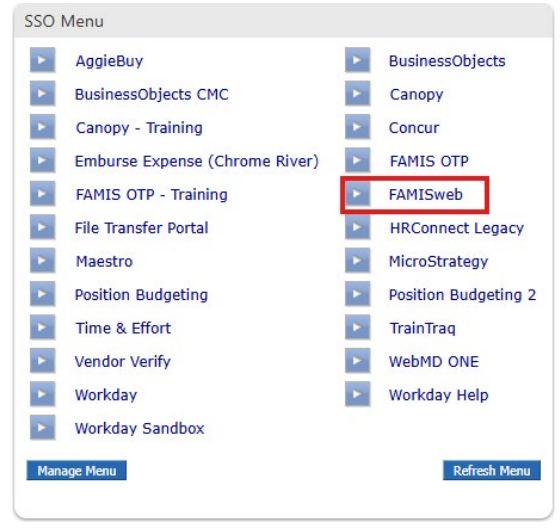
Step 1.
Login to SSO and select FAMISWeb from the menu
Step 2.
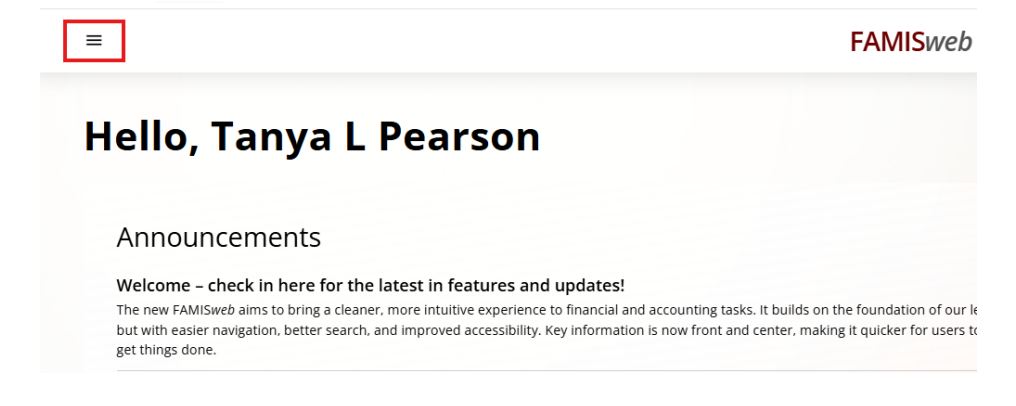
Locate the account where the transaction was posted. Click on the menu in the top left corner.
Step 3.
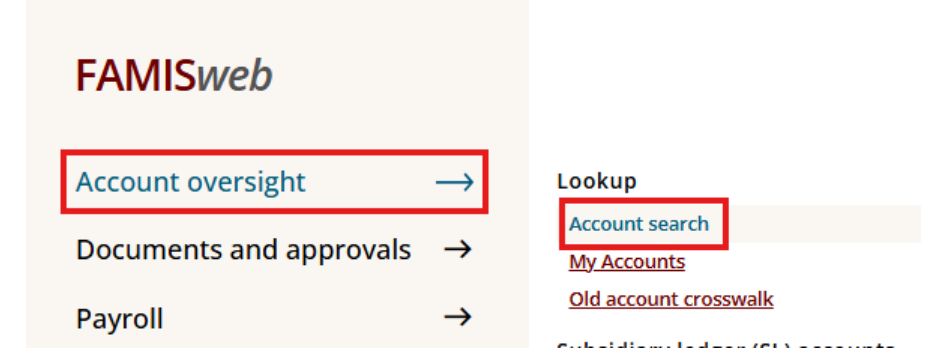
Click “Account oversight” then “Account search”
Step 4.
Enter identifying information to locate account (account number, description, department or responsible person) then hit search.

Step 5.
Click on the account to go to the account summary page.

Step 6.
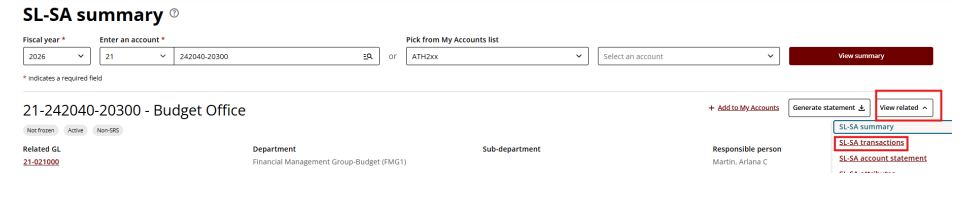
From the summary page, click “View related” and select “SL-SA transactions”.
Step 7.
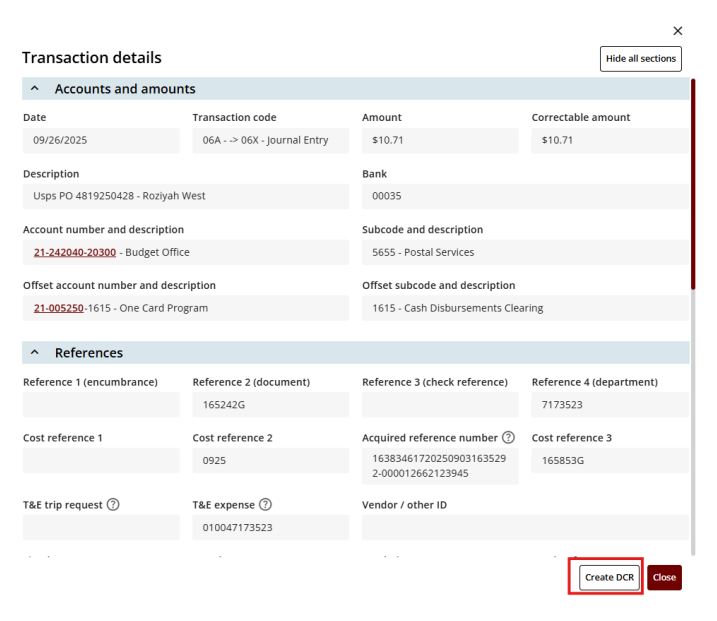
Locate the expense that needs to be moved to a new account and click the eye icon.

Step 8.
Click “Create DCR”.
Step 9.
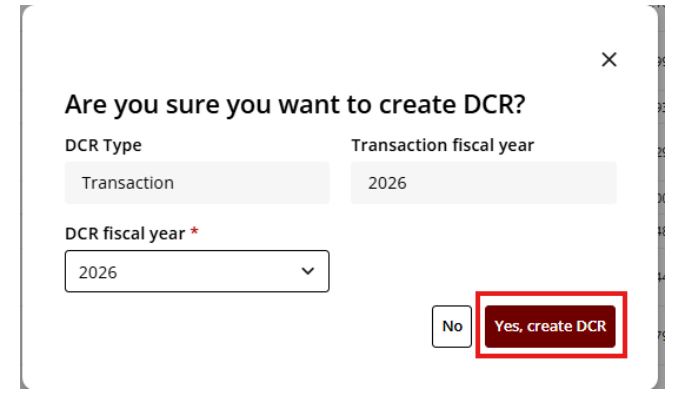
To proceed, click “Yes, create DCR”.
Step 10.
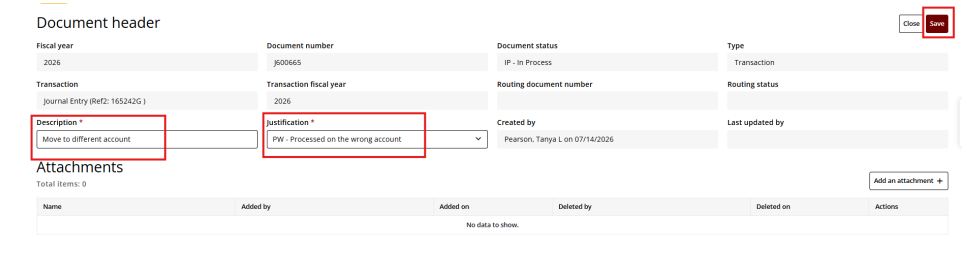
Enter description and select a justification code then click “Save”. You can also add an attachment if needed (must be a PDF).
Step 11.
Scroll down to “Line items (after DCR is applied)” and click the wrench button under Actions.

Step 12.
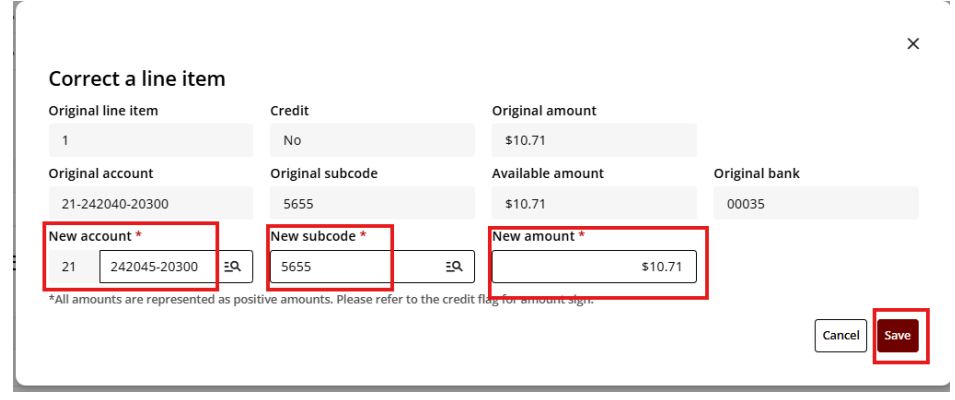
On this page, you can update the account number, subcode (if needed), and amount. Once finished, click “Save”.
Step 13.
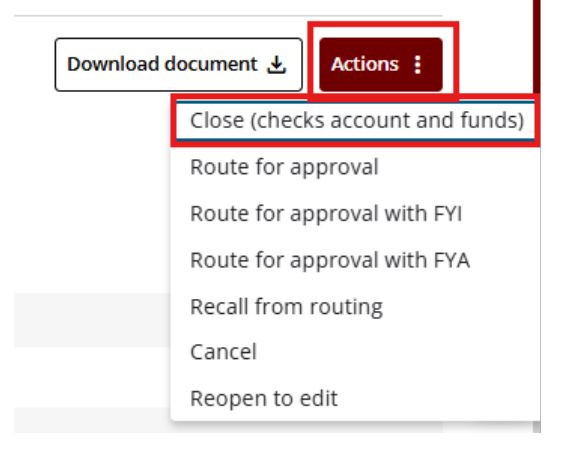
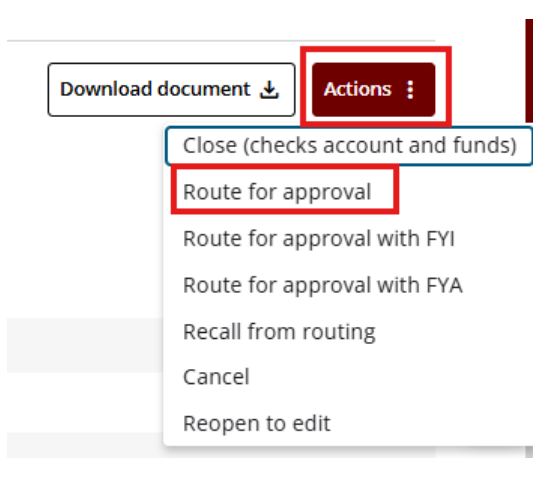
Review for accuracy then click “Actions” and “Close (checks account and funds).” then select “Actions” again and “Route for approval”.