

Budgeting Guide: How to Submit a Departmental Budget Request in FAMISWeb
The following steps are how to submit a DBR.
Step 1.
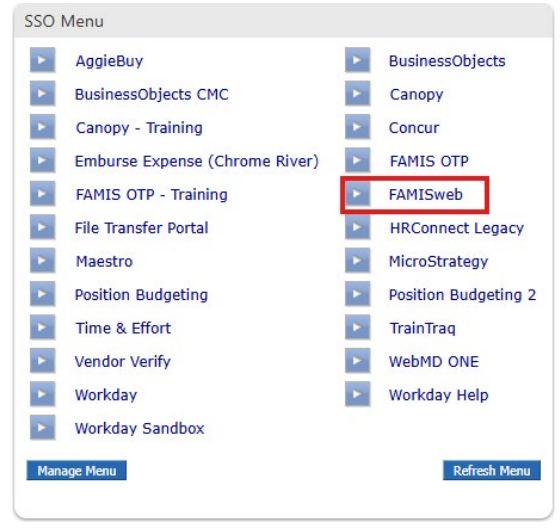
Login to SSO and select FAMISWeb from the menu
Step 2.
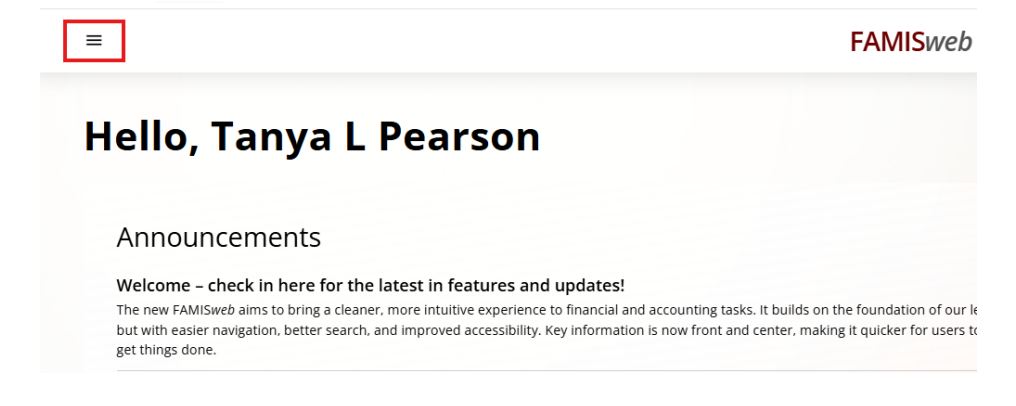
Locate the account where the transaction was posted. Click on the menu in the top left corner.
Step 3.
Click “Documents and approvals” then “DBR create”
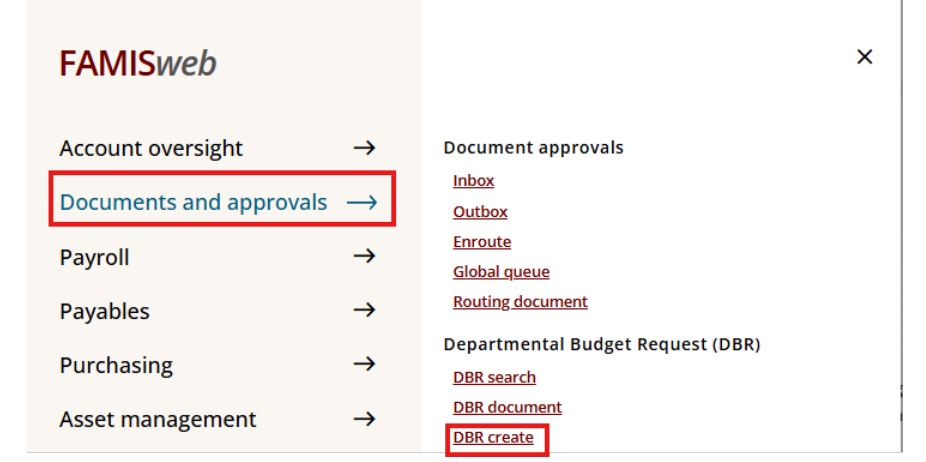
Note: if you do not have access to create DBRs, “DBR create” will be greyed out and you will not have the ability to click on it.
Step 4.
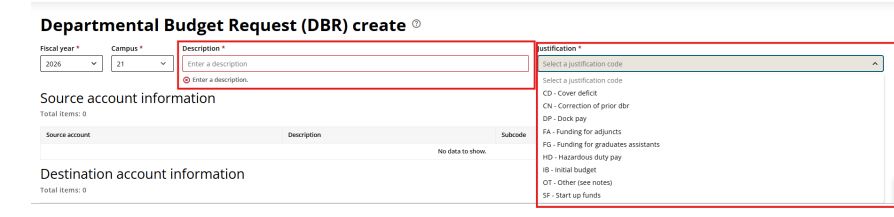
Enter a description and select a justification code from the dropdown menu.
Step 5.
Click “Add a new source account +” then enter the source account number or title, subcode, and amount. This is the account you are moving money FROM. Once you are finished, click the checkmark. To cancel, click the x.

Step 6.
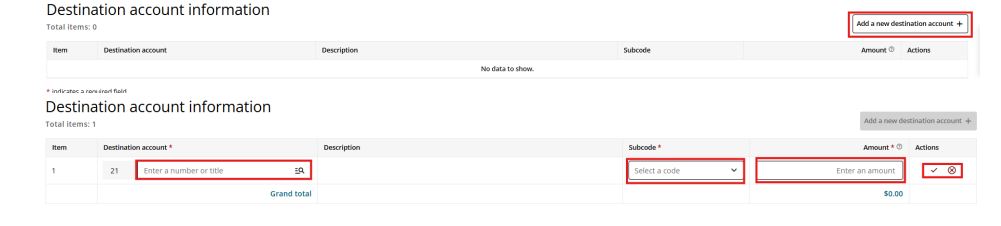
Click “Add a new destination account +” then enter the destination account number or title, subcode, and amount. This is the account you are moving money TO. Once you are finished, click the checkmark. To cancel, click the x.
Step 7.
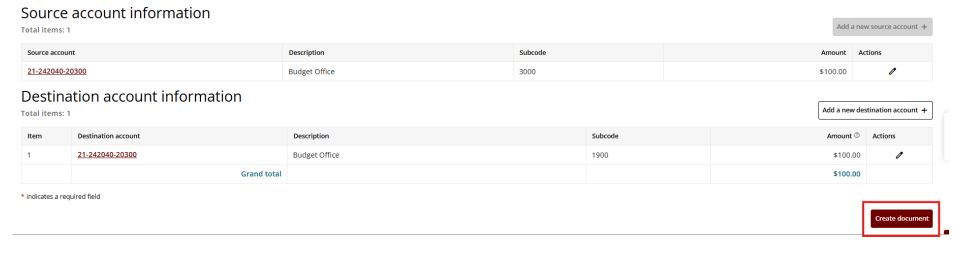
Once you have input the source and destination account information, check that your amounts match then click “Create document”.
Step 8.
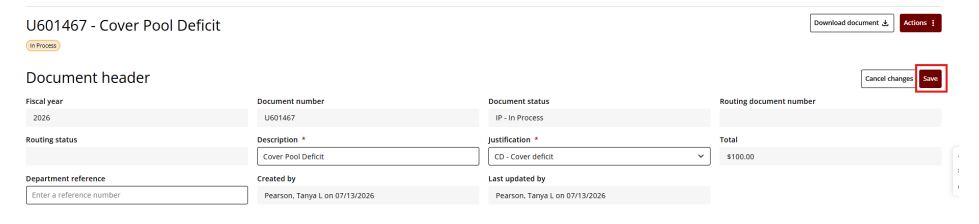
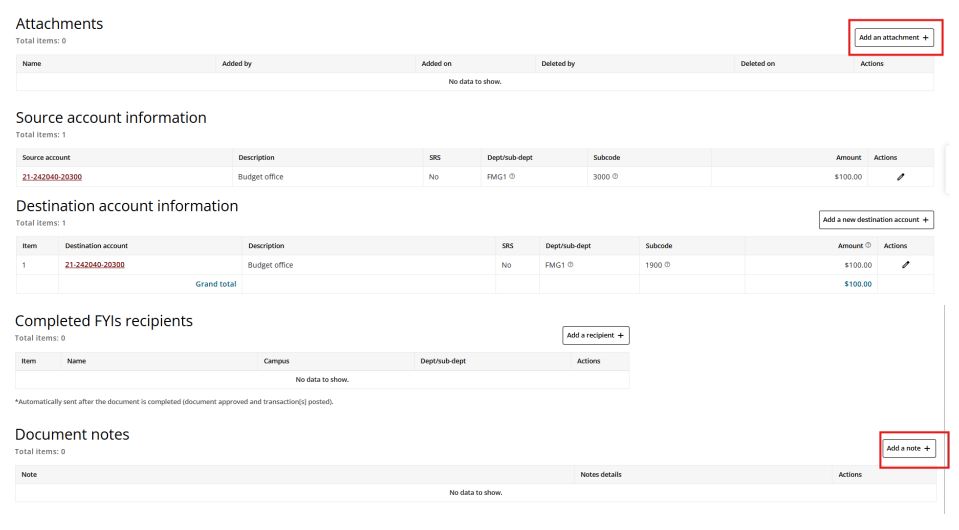
Review your DBR for accuracy. Add any attachments or notes, if needed. Once finished, click “Save”
Step 9.
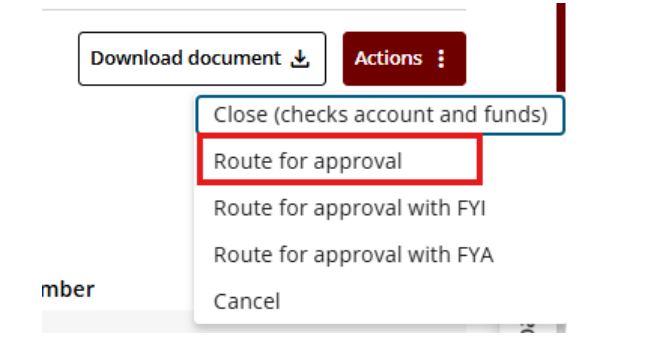
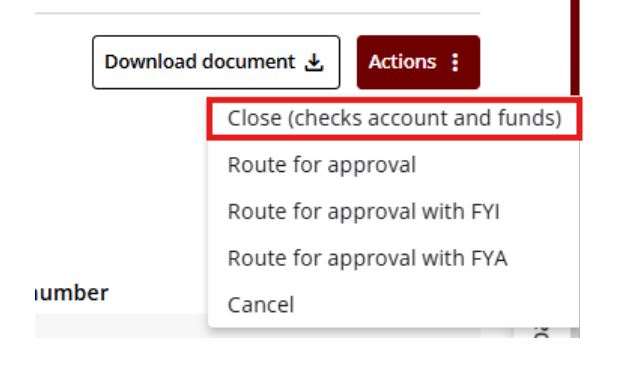
At the top, select “Actions” then “Close (checks account and funds)”
Step 10.
Select “Actions” then “Route for approval” to route the document.